Right-Click Taking Forever? Your Context Menu Is Stuffed With Junk — Here's How to Fix It
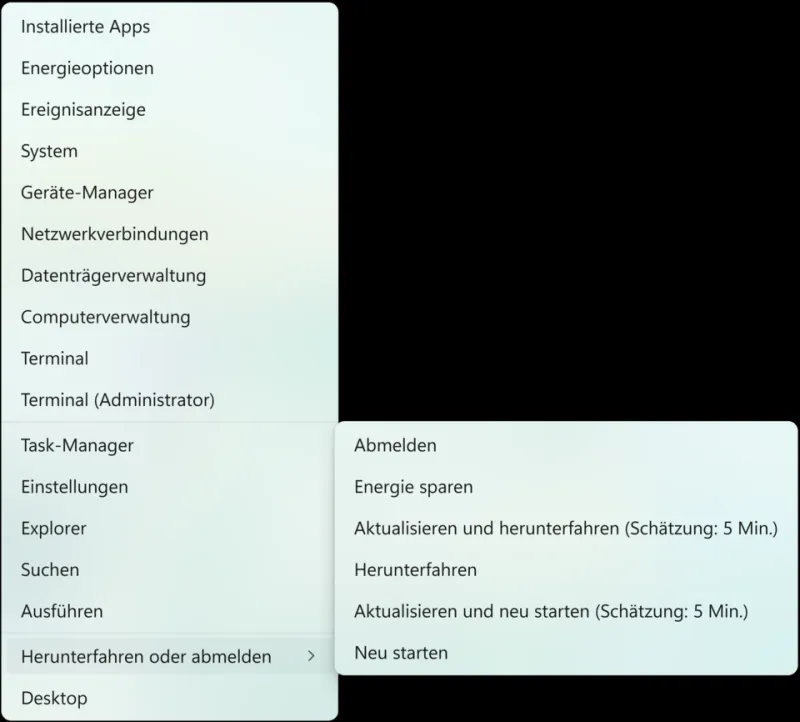
Photo: OS: Microsoft Corporation Screenshot: PantheraLeo1359531 😺 (talk), Public domain, via Wikimedia Commons
You right-click on a file. Nothing happens for a second. Then two seconds. Then this massive, scrolling list of options finally crawls onto your screen — half of which you've never used and never will. Sound familiar?
That lag isn't your imagination, and it's not a sign your PC is dying. It's your context menu, and it's absolutely stuffed with entries added by programs you installed months or years ago. Every app from your cloud storage client to your ancient zip utility decided to plant its flag in your right-click menu, and they're all loading every single time you right-click anything.
The good news: this is totally fixable. You don't need to dig through the registry (seriously, we're not doing that today), and you don't need to pay for anything. Let's walk through what's actually happening and how to clean it up.
Why Your Right-Click Menu Gets So Bloated
When you install software on Windows, many programs automatically add themselves to your context menu. This is called a "shell extension" — it's a small piece of code that loads whenever you right-click a file or folder. The idea is that it gives you quick access to that app's features. Right-click a file and boom, you can open it with VLC, scan it with your antivirus, or upload it to Dropbox without opening the app first.
In theory, that's handy. In practice, after you've installed a dozen or two programs over the years, your context menu becomes a wall of text. Worse, each one of those shell extensions has to load when you right-click, which is why there's that annoying pause before the menu even appears.
Some of these extensions are from programs you don't even use anymore — maybe you uninstalled the app but the shell extension stuck around like an uninvited houseguest.
What's Actually Hiding in There
Before you start deleting things, it helps to actually see what's loaded in your context menu and where it's coming from. Windows doesn't give you a clean list of this stuff natively, which is part of the problem.
This is where free tools come in.
ShellExView by NirSoft is one of the best free utilities for this job. It's a lightweight, portable app (no install needed) that shows you every single shell extension registered on your system — including the ones that show up in your right-click menu. You can see the name, publisher, file path, and whether it's currently enabled or disabled.
Download it from NirSoft's site (nirsoft.net), run it, and brace yourself. You'll probably see dozens of entries, maybe more. The ones highlighted in pink are third-party extensions — those are the ones most likely causing your slowdown and clutter.
ShellMenuView, also from NirSoft, is a companion tool that focuses specifically on the static entries in your context menu — the ones that appear for specific file types. It's a little more targeted if you want to clean up what shows up when you right-click a specific kind of file, like an MP3 or a PDF.
How to Identify What to Disable
Here's where a lot of guides tell you to go nuclear and disable everything that looks unfamiliar. Don't do that. Some shell extensions are genuinely useful or even necessary.
Instead, go through the list in ShellExView and ask yourself a few questions about each pink-highlighted entry:
- Do I still use this program? If you uninstalled the app and this is a leftover, it's safe to disable.
- Do I actually use this feature? If you've never right-clicked a file to upload it to some cloud service you barely remember signing up for, that entry isn't earning its keep.
- Is it slowing things down? ShellExView doesn't show load times directly, but you can test by disabling a batch of entries, restarting Explorer, and seeing if your right-click feels snappier.
To disable an entry in ShellExView, just select it and hit F7 (or right-click and choose Disable). It doesn't delete anything — it just stops Windows from loading it. You can re-enable anything at any time with F8, so there's no real risk here.
Using Windows 11's Built-In Context Menu Settings
If you're on Windows 11, Microsoft actually added a simplified context menu by default — that's the shorter menu that pops up first, with the "Show more options" link at the bottom. This was controversial when it launched, but it does help with the clutter problem by hiding the legacy shell extensions behind a second click.
If you want to lean into that design, you can use it to your advantage. Keep your most-used actions accessible in the top-level menu and let the extended list stay tucked away. You can customize which items appear in that top menu through the Settings app under Personalization, though your options are somewhat limited without third-party tools.
For more granular control on Windows 11 — or if you're still on Windows 10 — the NirSoft tools mentioned above remain your best free option.
A Cleaner Context Menu in Practice
Once you've gone through and disabled the stuff you don't need, you'll likely notice two immediate improvements: the menu appears faster, and it's actually readable without scrolling through a wall of options.
A reasonable target is to keep your context menu to the essentials — maybe your antivirus scan option, your preferred compression tool, and whatever file-related shortcuts you genuinely use on a daily basis. Everything else? Disabled.
If you want to go a step further and actually add custom shortcuts to your context menu — like a quick "Open Terminal Here" or "Copy File Path" option — tools like Right Click Enhancer Free let you do that without touching the registry manually. It's a handy way to replace the bloat with stuff you'll actually use.
Don't Forget to Restart Explorer
One thing people miss: after making changes with ShellExView, you need to restart Windows Explorer for the changes to take effect. You don't need to reboot your whole machine. Just open Task Manager (Ctrl+Shift+Esc), find "Windows Explorer" under Processes, right-click it, and hit Restart. Your taskbar will flicker for a second, and then your updated context menu will be live.
The Bottom Line
A bloated right-click menu is one of those small annoyances that quietly chips away at your productivity every single day. You probably right-click dozens of times a day without thinking about it — and every one of those interactions is slower than it should be because of software you may not even use anymore.
Spending 20 minutes with ShellExView to clean things up is one of the easiest wins you can get on a Windows PC. It's free, it's reversible, and the difference is immediately noticeable. Your right-click should be a quick shortcut, not a loading screen.