That Sketchy Download Deserves a Bubble, Not Your Real Desktop

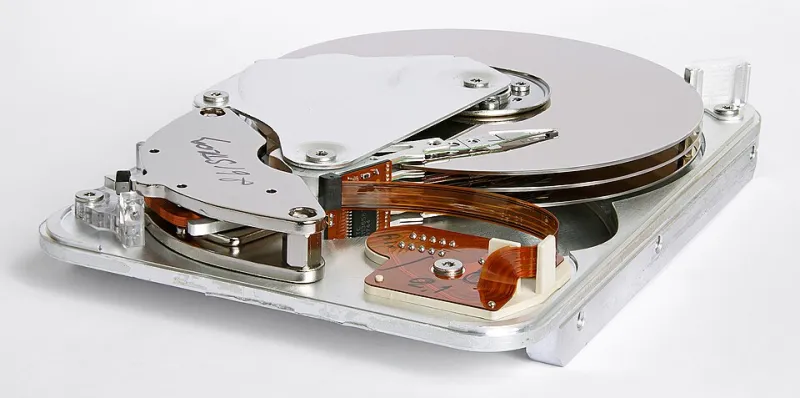
Photo: disposable virtual machine sandbox computer security testing, via img.tophinhanhdep.com
Every Windows PC has a drawer full of maybes: the portable utility from a forum, the installer a friend swore was fine, the free converter that wants administrator rights before it will tell you its name. Double-clicking that stuff on your main desktop is a small act of faith. Windows Sandbox is the free alternative to faith.
A disposable PC inside your PC
Windows Sandbox is a lightweight virtual machine that Microsoft built into some editions of Windows. You open it, get a clean Windows desktop, install or run whatever you are curious about, then close the window. The sandbox and everything inside it disappears. No leftover registry keys, no mystery startup entries, no browser toolbar you will find six months from now.
It is not antivirus. It will not tell you whether a file is malicious. What it does is contain the damage while you find out for yourself.
Check whether your edition has it
Sandbox is included with Windows Pro, Enterprise, and Education. Windows Home does not have it, which is annoying but not the end of the road. You also need virtualization enabled in the BIOS or UEFI. On many PCs it already is.
To turn it on, open the Start menu, type Turn Windows features on or off, and look for Windows Sandbox. Check the box, click OK, and reboot. If the option is missing, your edition probably does not include it. If it is there but the sandbox refuses to start, virtualization is the first thing to check in Task Manager under Performance > CPU. Look for Virtualization: Enabled.
A sane testing routine
The sandbox is at its best when you give it a job and no secrets. Download the questionable file to a folder you create just for testing. Launch Windows Sandbox from the Start menu. Treat the sandboxed desktop like a hotel room: use it, mess it up, leave nothing valuable behind.
Do not sign into your email, bank, Steam account, or password manager inside the sandbox. Do not type a real password. Do not copy a password to the clipboard while a suspicious app is running. The whole point is to keep your actual accounts out of the experiment.
Watch what the installer does. Does it ask for a license key before it has shown you a single screen? Does it offer to install a second browser, a PC cleaner, or a VPN you did not request? Does it phone home immediately? Those are useful clues. When you are done, close the sandbox window. Confirm the shutdown, and the environment is gone.
Clipboard and folders are the escape hatches
A sandbox is only as sealed as the doors you leave open. Windows Sandbox can share the clipboard and can map folders from your real PC. Both are convenient. Both can defeat the purpose if you are careless.
If you need to move a test file in, map one small folder and mark it read-only in the sandbox configuration file. Do not map your entire C: drive, your Downloads folder, or anything with tax returns and family photos. Read-only mapping means the sandbox can see the file but cannot change it. That is the right default.
Clipboard redirection is handy for copying a URL or a command. It is also a path for a nasty app to read whatever you copied five minutes ago. Keep the clipboard empty of secrets during the test, and turn redirection off if you do not need it.
Network access is another door. By default, the sandbox may be able to reach the internet. For a truly suspicious file, disable networking in the sandbox config unless the app needs a connection to run. Malware that cannot call home is easier to observe and less useful to whoever built it.
What the sandbox will not save you from
Virtual machines are not magic. Some malware checks whether it is running in a VM and behaves differently. Some attacks target the virtualization layer itself, though that is rare. And the sandbox cannot protect you from a bad decision you make outside it, like running the same installer on your real desktop because the sandbox version looked fine.
Use the sandbox to answer a narrow question: what does this thing do when it runs? If you still are not sure, upload the file to VirusTotal and let a pile of antivirus engines look at it. If you need the app for real work, install it on your main PC only after you have a reason to trust it, and keep a backup.
If you are on Windows Home
You are not stuck. A free virtual machine app such as VirtualBox can do the same job, though it asks more of you. Create a Windows VM, take a snapshot before you test, and roll back when you are done. Turn off shared folders and clipboard sharing between the host and the guest. Disconnect the VM from the network when you do not need it.
Sandboxie-Plus is another free option for running programs in an isolated layer on the same desktop. It is lighter than a full VM, but it is a different kind of fence. Read the documentation before you trust it with anything important.
The principle is the same on every edition: give the unknown file a room of its own, keep your real files and passwords out of that room, and throw the room away when you are finished. Windows Sandbox just makes that routine about as easy as opening a window.