Your Phone and Windows PC Are Basically Strangers — Introducing Them Costs Nothing
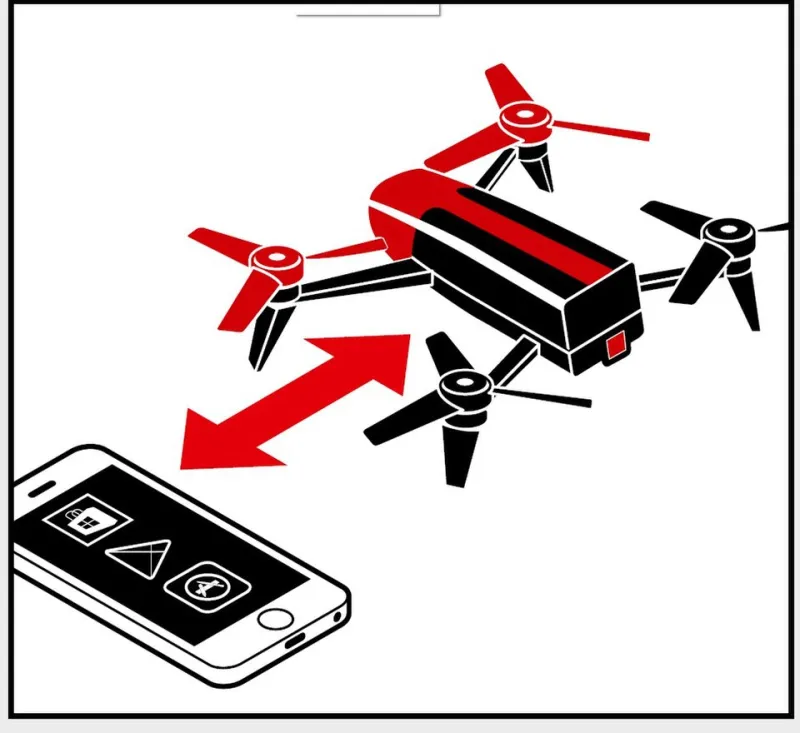
Photo: Halftermeyer, CC BY-SA 4.0, via Wikimedia Commons
There is a specific kind of low-grade frustration that comes from owning a phone and a PC that refuse to acknowledge each other. You take a screenshot on your phone, then text it to yourself. You type a long URL on a tiny keyboard because getting it onto the desktop feels harder than retyping it. You download a PDF on your laptop and cannot find it on your phone ten minutes later.
None of that is necessary. Everything in this guide is free, and most of it takes under ten minutes to configure. The catch is that the right answer depends heavily on whether you carry an Android phone or an iPhone, so we will split the recommendations accordingly.
Start by Naming What You Actually Need to Move
People say "sync" and mean wildly different things. Before installing anything, decide which of these you care about:
- Files — photos, PDFs, documents, the occasional 400MB video.
- Notifications — seeing your phone's texts and calls while you work.
- Clipboard — copying on one device and pasting on the other.
- Photos — auto-uploading camera shots so they land on the PC.
Most tools are good at one or two of these and mediocre at the rest. Chasing a single app that does everything usually ends in a paid tier.
Microsoft Phone Link: The Default, With a Catch
Phone Link is built into Windows and free, and on Android it is genuinely excellent. Install the Link to Windows app on the phone, sign in with the same Microsoft account on both devices, scan the QR code, and you get notifications, text messaging from your keyboard, recent photos, and the ability to place and take calls through the PC's mic and speakers.
On iPhone, expectations need managing. Apple does not hand third parties access to iMessage or SMS, so Phone Link gives you limited messaging (it relies on iCloud syncing and is more fragile), plus calling over Bluetooth and basic notification mirroring with a paired iPhone. It works, but it is a shadow of the Android experience and it breaks occasionally after iOS updates.
The trade-off is the account. Phone Link routes a lot through Microsoft's cloud, which means your message metadata and photos pass through a company server. If that bothers you, read on.
KDE Connect: The Open-Source Bridge
KDE Connect started life in the Linux world and now has a solid Windows client. Install the app on your phone and the Windows build on your PC, make sure both are on the same Wi-Fi network, and they find each other automatically.
What you get: clipboard sharing (both directions, which is the killer feature), file transfer, notification mirroring, the ability to use your phone as a trackpad or media remote, and even "find my phone" style pings.
Android support is mature. iOS support exists but is constrained by Apple's background-processing rules, so clipboard sync and notification mirroring on iPhone are unreliable. If you are on Android and want clipboard sync without a cloud account, this is the best free option available.
One setup note: the first time you connect, Windows Firewall will pop up asking about network access. Allow it on private networks only. If your home network is marked as public in Windows, KDE Connect will keep failing to see your phone — switch the network profile to private in Settings > Network & internet and it will start working.
LocalSend: No Account, No Cloud, No Nonsense
LocalSend is an open-source, cross-platform file transfer tool that works over your local network with no account, no cloud relay, and no setup beyond installing it. Open it on both devices, pick a device, drop files in, accept on the other end. Transfers are encrypted in transit and go straight from phone to PC.
It is the answer for one-off big file moves — a video, a folder of photos from a trip, a document you need to sign. It will not sync continuously and it does not touch your clipboard, but for raw "get this file over there" it is the cleanest free tool in this entire article. Both Android and iPhone versions work well.
Cloud Folders: The Boring Option That Still Works
OneDrive is already on your Windows machine, Google Drive and Dropbox have free tiers, and all three have phone apps that can auto-upload photos. If your goal is "my phone photos should exist somewhere other than my phone," a synced folder is the least fragile solution and requires almost no thought.
The trade-off is obvious: your files live on someone else's server, and free tiers are small (typically 5 to 15GB) and stingy about it. Deleting from the folder usually deletes from the cloud too, which surprises people who expected a backup. It is sync, not backup, and that distinction bites folks every year.
Clipboard Specifically, Because Everyone Asks
For quick copy-paste between devices, three approaches work:
- Windows clipboard history with cloud sync. Press Win+V, turn on clipboard history, then enable sync across devices in Settings > System > Clipboard. It requires a Microsoft account, and pairing it with the SwiftKey keyboard on Android extends it to your phone. Microsoft accounts only, and it can be slow to propagate.
- KDE Connect. Instant, local, free, Android only in practice.
- LocalSend or a shared note. Crude, but a pinned note in a synced app solves most of these problems for people who do not want another background service.
Privacy Trade-Offs in One Paragraph
Cloud-based tools (Phone Link, OneDrive, Google Drive) are convenient, resilient, and mean a corporation stores your data. Local-network tools (KDE Connect, LocalSend) keep everything on your own Wi-Fi, work without internet, and fail when you are on hotel or office networks that block device-to-device traffic. Pick based on which failure mode you can live with.
What I Would Set Up
Android users: Phone Link for notifications and messaging, plus KDE Connect for clipboard and quick file drops, plus LocalSend for anything large. Three apps, no subscription.
iPhone users: LocalSend for files and a synced cloud folder for photos. Add Phone Link only if Bluetooth calling from your PC sounds appealing. Clipboard sync across iOS is the one thing free tools genuinely struggle with, and no amount of fiddling fixes Apple's sandbox.