The Windows Registry Isn't Broken — But the Apps Promising to Fix It Might Break Everything
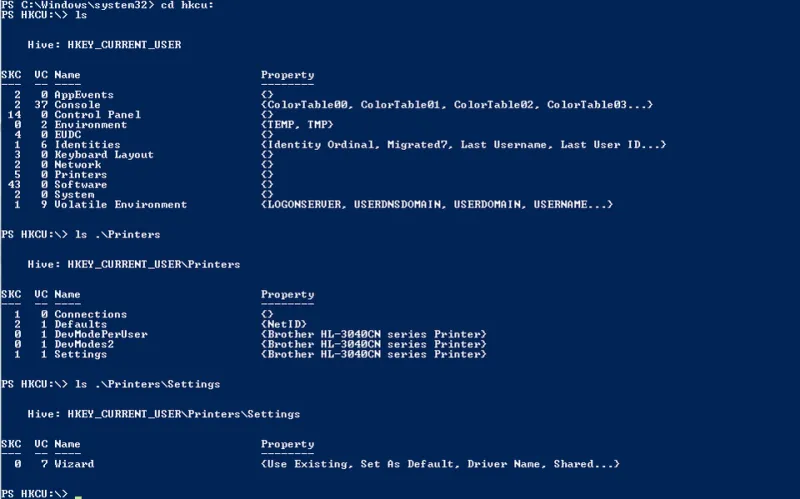
Photo: Microsoft, Public domain, via Wikimedia Commons
If you've spent any time poking around PC optimization forums or watching YouTube videos about speeding up Windows, you've almost certainly encountered the registry cleaner pitch. It usually goes something like this: your registry is bloated, it's slowing you down, and you need to clean it right now before things get worse. Download this tool, click Scan, and watch thousands of "errors" disappear.
Here's the thing — that pitch is mostly fiction. And acting on it can turn a perfectly functional PC into a very expensive paperweight.
Let's break down what the Windows Registry actually is, why the "it's full of junk" narrative is overblown, and what you should do when a genuine registry problem shows up.
So What Even Is the Registry?
Think of the Windows Registry as your PC's master control panel — a massive, hierarchical database that Windows and your installed applications constantly read from and write to. It stores everything from user preferences and hardware configurations to software license information and file association rules.
When you change your desktop wallpaper, install a new app, or plug in a USB device, the registry gets updated. It's not a static file sitting on your hard drive collecting dust — it's a living, breathing part of how Windows operates, every single second your PC is running.
The registry is organized into a series of "hives" — think of them like folders — with names like HKEY_LOCAL_MACHINE and HKEY_CURRENT_USER. Inside those hives are keys and values that correspond to specific settings. It sounds complicated because it is. Which is exactly why messing with it carelessly is such a bad idea.
The "Dirty Registry" Myth, Explained
Here's where the marketing machine kicks in. When you uninstall a program, Windows removes the app's files but sometimes leaves behind orphaned registry entries — references to software that no longer exists. Registry cleaner companies love to point at these leftover entries and call them "errors" or "junk" that's dragging down your system.
The reality? Those orphaned entries are essentially harmless. They're not being read, they're not consuming meaningful CPU cycles, and they're not eating your RAM. The Windows Registry can hold millions of entries and still operate efficiently. A few hundred leftover keys from an uninstalled app from 2019 are not why your PC feels slow.
Microsoft itself has repeatedly stated that registry cleaning is unnecessary for performance. The company doesn't include a registry cleaner in Windows — not because they forgot, but because they've determined it's not a useful maintenance task for the average user.
Why Registry Cleaners Can Actually Wreck Your System
This is where things get genuinely serious. Registry cleaners work by scanning for entries they think are unnecessary and deleting them. The problem is that these tools aren't infallible — not even close. They can and do flag entries that are actively needed by Windows or installed software.
Delete the wrong key and you might find that a critical application refuses to launch, a hardware driver stops working, or in worst-case scenarios, Windows itself becomes unstable or won't boot. Recovering from that kind of damage often means a full Windows reinstall — hours of work, potential data loss, and a whole lot of frustration that could have been completely avoided.
Some of the most aggressively marketed registry cleaners are also bundled with adware or behave like scareware — showing you inflated "error" counts designed to panic you into buying the premium version. We've covered this kind of software trickery before, and registry cleaners are one of the most common offenders in that space.
Bottom line: the risk-to-reward ratio on registry cleaners is genuinely terrible. The potential upside (marginally tidier database entries nobody was reading anyway) is vastly outweighed by the potential downside (a broken PC).
Okay, But What If There's a Real Registry Problem?
Fair question. Genuine registry corruption does happen — usually after a bad Windows update, an improper shutdown during a write operation, or malware that deliberately tampers with registry entries. In those cases, you may see specific error messages, application crashes tied to particular software, or Windows behavior that's clearly off.
Here's a framework for handling those situations without making things worse:
1. Use System Restore First Before touching anything in the registry manually, check whether System Restore can roll your system back to a point before the problem started. This is Windows' built-in safety net, and it works at the registry level. Hit Start, search for "Create a restore point," and look at your available restore points. If one predates your issue, use it.
2. Run the Built-In Windows Repair Tools
Windows has legitimate diagnostic tools that can fix certain types of registry corruption without requiring third-party software. Open Command Prompt as Administrator and run sfc /scannow — the System File Checker will scan for and attempt to repair corrupted system files, including registry-related issues. Follow that up with DISM /Online /Cleanup-Image /RestoreHealth for deeper system image repair.
3. Back Up Before You Touch Anything If you've been pointed to a specific registry key as the source of a problem — by a reputable support forum, Microsoft's own documentation, or a trusted tech source — and you feel confident enough to edit it manually using the built-in Registry Editor (regedit), always export a backup of the relevant key first. Right-click the key, choose Export, and save the .reg file somewhere you can find it. If something goes wrong, you can double-click that file to restore what you had.
4. Know When to Ask for Help If you're staring at regedit and you're not sure what you're looking at, that's a completely valid reason to stop and seek guidance. Microsoft's support site, the r/techsupport community, and manufacturer support pages are all better options than blindly deleting entries and hoping for the best.
What Actually Makes Your PC Faster
If your Windows machine is feeling sluggish and you were hoping a registry cleanup was the silver bullet, we get it — it sounds logical. But the real culprits behind a slow PC are almost always elsewhere: too many startup programs eating boot time, background apps hogging RAM, a nearly-full drive, outdated drivers, or malware running quietly in the background.
Those are problems with real, free solutions. Task Manager, Windows' built-in Startup tab, Disk Cleanup, and a solid free antivirus scanner will do more for your PC's performance than any registry cleaner ever could.
The Takeaway
Your registry isn't a junk drawer that needs periodic purging. It's a sophisticated system database that Windows manages pretty well on its own. The software industry has spent decades convincing users otherwise because there's money in the fear — but the fear isn't backed by evidence.
Leave the registry alone unless you have a specific, documented problem and a specific, documented fix. Use Windows' own repair tools when something goes wrong. And if someone's trying to sell you a cleaner by showing you a scary list of thousands of "errors," close that tab and walk away.
Your PC will thank you.